Website speed is no longer just a technical concern for developers. It directly affects how visitors experience a website, whether they stay on a page, interact with it, complete a purchase, or leave before the content becomes usable. For businesses that depend on organic traffic and conversions, performance should be treated as an important part of the overall SEO strategy.
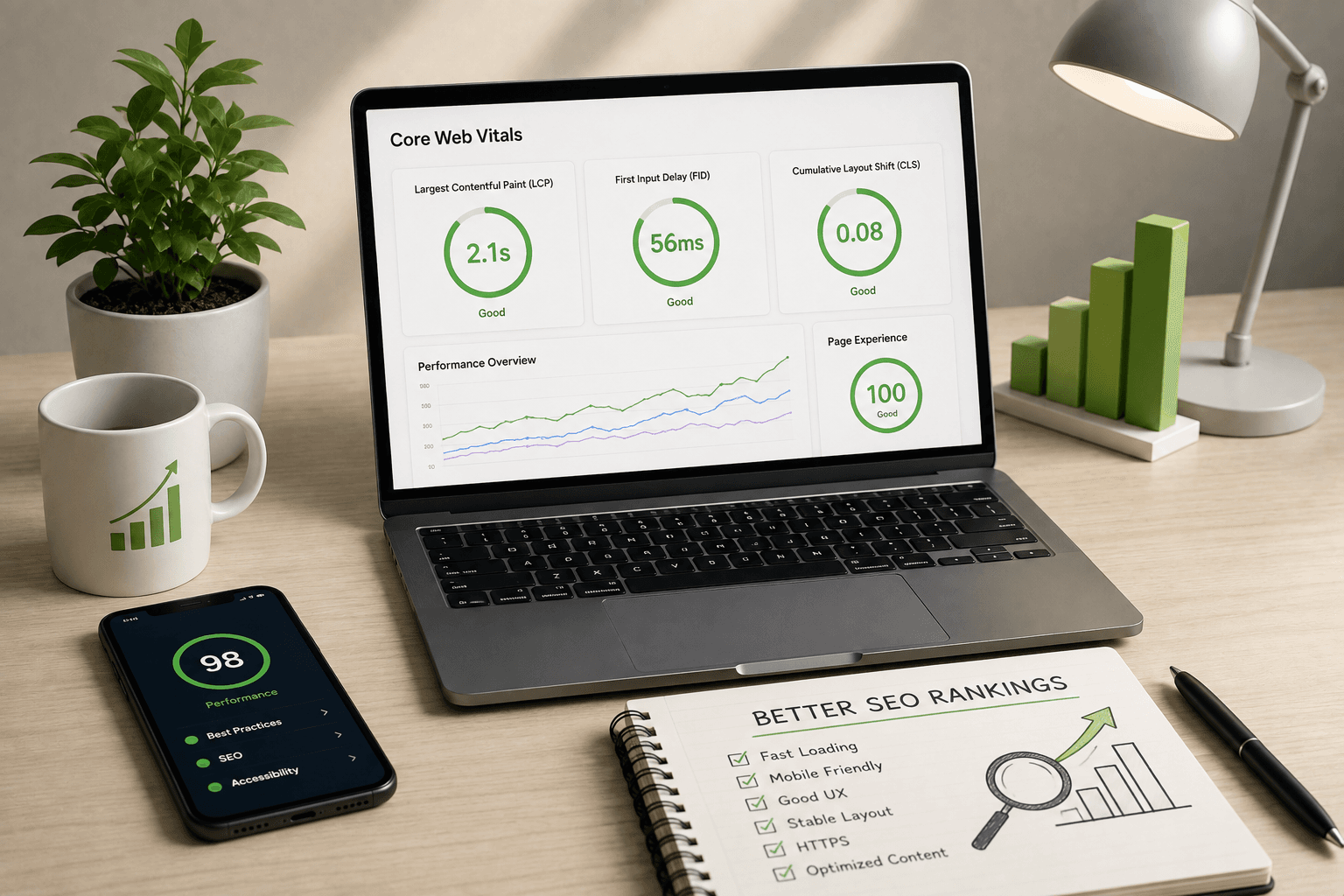
Google's Core Web Vitals provide a practical way to measure important aspects of real-world user experience. They focus on loading performance, responsiveness, and visual stability. Improving these metrics can make a website faster and more pleasant to use while also helping it meet Google's page experience expectations.
In this guide, we will look at the three current Core Web Vitals: Largest Contentful Paint (LCP), Interaction to Next Paint (INP), and Cumulative Layout Shift (CLS). We will also cover practical optimization techniques that can be applied to Shopify stores, React applications, Next.js websites, WordPress websites, and other modern web projects.
What Are Core Web Vitals?
Core Web Vitals are a set of user-focused performance metrics used to evaluate important aspects of how a web page performs for real visitors. Instead of looking only at how quickly a server responds or how large a JavaScript bundle is, these metrics attempt to measure what users actually experience in the browser.
The three Core Web Vitals currently used by Google are:
- LCP (Largest Contentful Paint): Measures loading performance.
- INP (Interaction to Next Paint): Measures responsiveness to user interactions.
- CLS (Cumulative Layout Shift): Measures visual stability.
Google's recommended "good" thresholds are generally:
- LCP: 2.5 seconds or less.
- INP: 200 milliseconds or less.
- CLS: 0.1 or less.
These thresholds are based on real user experience rather than simply measuring whether a page technically finished loading. A page can appear visually attractive and still perform poorly if its main content loads slowly, interactions are delayed, or elements unexpectedly move around the screen.
Important: FID Was Replaced by INP
If you have read older SEO or performance guides, you may have seen First Input Delay (FID) listed as a Core Web Vital. FID was officially replaced by Interaction to Next Paint (INP) as a Core Web Vital in March 2024.
This distinction matters when auditing a website in 2026. You should not optimize a modern website only around FID. INP provides a broader view of responsiveness because it considers interactions throughout the user's visit instead of focusing only on the first interaction.
For example, a page might respond quickly to the first click but become extremely slow after opening a product filter, cart drawer, menu, modal, or checkout-related interface. INP is designed to capture this type of interaction experience more effectively.
Why Core Web Vitals Matter for SEO
Core Web Vitals are part of Google's broader page experience signals. However, it is important to understand that achieving perfect performance scores does not automatically guarantee a top position in Google Search.
Search rankings depend on many factors, including relevance, content quality, search intent, backlinks, technical SEO, website authority, crawlability, structured data, and many other signals. Performance is one part of the larger picture.
That does not make performance unimportant. A fast, stable and responsive website can provide a stronger user experience and remove technical performance problems that can otherwise hurt users and conversions.
For a freelancer, agency, SaaS company, Shopify store owner, or service business, performance optimization should therefore be approached as both an SEO improvement and a conversion optimization activity.
Understanding LCP: Largest Contentful Paint
Largest Contentful Paint (LCP) measures how quickly the largest visible content element in the viewport becomes rendered. Depending on the page, this could be a large hero image, product image, heading, video poster, or another prominent content element.
Google's recommended LCP target is:
- Good: 2.5 seconds or less.
- Needs improvement: More than 2.5 seconds and up to 4 seconds.
- Poor: More than 4 seconds.
LCP is especially important for landing pages because visitors often decide whether a page feels fast based on how quickly the primary content becomes visible.
What Causes a Slow LCP?
A slow LCP can be caused by several different problems. The browser does not simply need to download an image. It may first need to establish a connection, receive the HTML, discover resources, download CSS and JavaScript, construct the page, and finally load and render the largest element.
Common causes include:
- Slow server response time.
- Large hero images.
- Unoptimized image formats.
- Render-blocking CSS.
- Large JavaScript bundles.
- Client-side rendering delays.
- Third-party scripts.
- Incorrect image loading priorities.
- Web font delays.
- Too many redirects.
- Poor caching configuration.
How to Improve LCP
1. Optimize Your Hero Image
If your largest element is a hero image, make sure it is appropriately compressed and served in a modern format such as WebP or AVIF where supported by your delivery stack.
Do not upload a 5000-pixel-wide image simply because the original photograph came from a high-resolution camera. Determine the maximum size required by the actual design and serve an appropriately sized responsive image.
For example, a desktop hero displayed at approximately 1400 pixels wide does not normally need to download a massive 5000-pixel source image for every visitor.
2. Do Not Lazy-Load the LCP Image
Lazy loading is useful for images that appear below the fold, but applying lazy loading to the primary above-the-fold image can delay the browser from discovering and downloading the element that determines LCP.
For an important hero image, use the appropriate loading priority instead of blindly applying loading="lazy".
3. Use Responsive Images
Responsive image techniques allow browsers to choose an appropriate image resource based on viewport size and device characteristics.
A typical HTML implementation can use srcset and sizes:
Frameworks such as Next.js can simplify responsive image handling through the built-in Image component.
4. Improve Server Response Time
If the server takes too long to return the initial HTML document, everything after that can be delayed. Review your hosting infrastructure, database queries, server-side rendering, API calls, middleware, redirects, and caching strategy.
For dynamic applications, avoid making unnecessary server-side requests before rendering content that is immediately visible to the user.
5. Reduce Render-Blocking Resources
CSS and JavaScript can delay rendering when they need to be downloaded and processed before the browser can display important content. Keep critical CSS efficient and avoid loading unnecessary JavaScript on every page.
Understanding INP: Interaction to Next Paint
Interaction to Next Paint (INP) measures how responsive a page is when users interact with it. Interactions can include clicking buttons, selecting navigation menus, opening filters, typing into forms, adding products to a cart, and other supported interactions.
Google's recommended INP target is:
- Good: 200 milliseconds or less.
- Needs improvement: More than 200 milliseconds and up to 500 milliseconds.
- Poor: More than 500 milliseconds.
A low INP generally means the browser can process interactions and provide visual feedback quickly.
Why JavaScript Often Causes Poor INP
Modern websites rely heavily on JavaScript. React applications, Shopify themes, analytics tools, chat widgets, review apps, sliders, popups, animation libraries, personalization systems, and marketing scripts can all execute JavaScript on the main browser thread.
When JavaScript performs long-running tasks, the browser may not have enough time to respond to the user's interaction immediately.
For example, imagine a customer clicks an "Add to Cart" button. If the browser is simultaneously processing a large JavaScript task, the click may technically be registered but the visible response can be delayed.
How to Improve INP
1. Reduce JavaScript
One of the most effective ways to improve responsiveness is to reduce unnecessary JavaScript. Audit your dependencies and remove libraries that are not providing enough value for their performance cost.
Do not ship a large application bundle to every page when only a small portion of the functionality is required.
2. Split Large Tasks
Long JavaScript tasks can block the main thread. Break expensive operations into smaller chunks so that the browser has opportunities to respond to user interactions between tasks.
3. Avoid Unnecessary Re-Renders
In React applications, unnecessary component renders can increase the amount of work performed after interactions. Review component structure, state placement, expensive calculations, and rendering logic before automatically adding memoization everywhere.
Performance optimization should be measured rather than based on assumptions.
4. Delay Non-Critical Third-Party Scripts
Analytics, advertising, chat widgets, heatmaps, social embeds, reviews, and other third-party scripts can consume CPU time. Load them only when necessary and avoid making every page dependent on a large collection of third-party resources.
This is especially relevant for e-commerce websites where multiple Shopify apps can inject their own scripts into the storefront.
5. Optimize Event Handlers
Expensive event handlers should be reviewed carefully. Avoid performing large synchronous operations inside click, input, scroll, resize, or other high-frequency event handlers.
Understanding CLS: Cumulative Layout Shift
Cumulative Layout Shift (CLS) measures unexpected movement of visible page elements. A layout shift happens when content moves without the user intentionally causing that movement.
Google's recommended CLS target is:
- Good: 0.1 or less.
- Needs improvement: More than 0.1 and up to 0.25.
- Poor: More than 0.25.
CLS is not simply about animation. It is primarily concerned with unexpected layout movement that can make a page difficult or frustrating to use.
Common Causes of CLS
- Images without defined dimensions.
- Ads injected into the page without reserved space.
- Web fonts causing text reflow.
- Dynamic content inserted above existing content.
- Cookie banners changing the layout unexpectedly.
- Late-loading widgets.
- Third-party embeds without reserved dimensions.
- Animations that modify layout properties.
How to Reduce CLS
1. Set Image Dimensions
Always reserve the correct amount of space for images whenever possible. The browser can then calculate the layout before the image finishes downloading.
<img src="/images/product.webp" width="800" height="800" alt="Product" />Modern frameworks such as Next.js also provide image components that help developers handle dimensions and responsive image delivery more consistently.
2. Reserve Space for Dynamic Components
If an advertisement, product recommendation widget, newsletter form, review widget, or other dynamic component is going to appear, reserve its expected space before the content loads.
3. Be Careful With Web Fonts
Web fonts can change the dimensions and appearance of text after the initial page render. Configure font loading carefully and use appropriate fallback strategies to reduce visible text movement.
4. Avoid Injecting Content Above Existing Content
If a promotional banner suddenly appears above a heading after the page has rendered, everything below it may move. If the banner is important, allocate its space during the initial layout.
Core Web Vitals for Shopify Stores
Shopify merchants often face a unique performance challenge because storefront functionality can be affected by themes, apps, tracking systems, images, product data, review widgets, recommendation systems, chat tools, and other third-party integrations.
A store can look visually impressive while still shipping unnecessary JavaScript and large media assets.
When optimizing a Shopify store, start by identifying the actual sources of performance problems rather than simply installing another optimization app.
Audit Shopify Apps
Review every installed app and determine whether it injects JavaScript, CSS, widgets, tracking scripts, or other resources into the storefront.
If an app is no longer required, remove it. If an app is needed only on specific pages, investigate whether its resources can be restricted to those pages.
Optimize Shopify Theme Code
Unused Liquid snippets, unnecessary JavaScript, duplicate CSS, excessive DOM elements, and inefficient theme logic can make a storefront harder to maintain and slower to render.
A well-structured Shopify theme should load only what the page actually needs.
If you need professional help with custom Shopify themes, Liquid development, performance optimization, or storefront improvements, you can explore the Shopify Development service offered by Built by Saurav.
Optimize Product Images
Product images are often some of the largest resources on e-commerce websites. Use appropriate dimensions and modern image formats while maintaining sufficient visual quality for customers.
Do not make every product image load at maximum quality before the customer has even scrolled to the product section.
Core Web Vitals for React Applications
React gives developers a powerful component model, but performance depends on how the application is structured. Large client-side bundles, unnecessary dependencies, excessive state updates, and rendering too much content on the client can all contribute to poor performance.
When building a React application, identify which components actually need to be interactive and avoid turning static content into client-side components without a reason.
For businesses that need modern frontend interfaces, the React & Next.js Development service can be used to build responsive and performance-focused web experiences.
Core Web Vitals for Next.js Websites
Next.js provides several features that can help developers build performant websites, including server-side rendering, static generation, image optimization, code splitting, font optimization, caching mechanisms, and other rendering strategies depending on the application's architecture and Next.js version.
However, simply using Next.js does not automatically make a website fast. Poor component architecture, oversized images, excessive client-side JavaScript, third-party scripts, inefficient API calls, and unnecessary animations can still create performance problems.
Use Server and Client Components Carefully
In modern Next.js applications using the App Router, developers should consider whether a component actually needs to run on the client. Keeping unnecessary components server-rendered can help reduce client-side JavaScript.
The objective is not to eliminate client components. Interactive interfaces still require them. The goal is to keep the client-side portion intentional and as efficient as practical.
Use Optimized Images
Large images can quickly become the largest content element on a page. Use responsive image dimensions and modern delivery strategies rather than serving the same oversized asset to every device.
Optimize Fonts
Fonts can affect both loading and visual stability. Next.js provides next/font, which can simplify font loading and reduce the need to manually manage external font requests.
Core Web Vitals for WordPress
WordPress performance depends heavily on the theme, plugins, hosting environment, database configuration, images, caching strategy, and third-party services.
A lightweight theme with carefully selected plugins can often provide a much better starting point than a heavily customized installation containing dozens of unnecessary plugins.
If your WordPress website needs custom functionality or a performance-focused rebuild, you can learn more about the WordPress Development service.
Do Not Rely Only on Lighthouse
One of the most important things to understand about website performance is the difference between lab data and field data.
Tools such as Lighthouse can run a controlled performance test and provide valuable diagnostic information. However, real visitors use different devices, browsers, networks, locations, screen sizes, and interaction patterns.
Google's Chrome User Experience Report, commonly known as CrUX, provides real-user experience data for eligible websites and is one of the sources used for field performance analysis.
That means a website can receive a good Lighthouse score in one test while real users still experience performance problems under slower network or device conditions.
How to Test Core Web Vitals
There are several useful tools for investigating website performance.
PageSpeed Insights
Google PageSpeed Insights provides both lab-style Lighthouse analysis and, when available, real-user data from the Chrome User Experience Report.
Run tests on important URLs rather than testing only the homepage. For an e-commerce website, useful pages may include a homepage, collection page, product page, cart, blog article, and landing page.
Chrome DevTools
Chrome DevTools provides detailed information about network requests, JavaScript execution, rendering, layout shifts, CPU activity, and other browser-level behavior.
Google Search Console
Search Console's Core Web Vitals report can help site owners understand how URLs are performing based on available real-user data. It can group URLs with similar performance characteristics and highlight issues that deserve investigation.
Build a Repeatable Performance Audit
Performance optimization becomes much more effective when it is treated as a repeatable engineering process instead of a one-time score improvement exercise.
- Identify important pages.
- Collect current performance data.
- Identify the largest bottlenecks.
- Fix one category of issue at a time.
- Re-test after each major change.
- Compare field data when available.
- Monitor performance after deployment.
This approach prevents developers from making changes simply because a tool recommends them without understanding the actual impact on the website.
Do Not Chase a Perfect Lighthouse Score
A common mistake is trying to turn every performance metric into a perfect 100 score. While high scores can be useful indicators, the goal should be a fast and reliable user experience rather than a number on a testing tool.
For example, removing a useful analytics system solely to increase a lab score might not be the correct business decision. Similarly, reducing image quality too aggressively can hurt product presentation and conversion rates.
Performance optimization requires balancing speed, functionality, accessibility, visual quality, analytics, SEO, and business requirements.
Optimize the Critical Rendering Path
The browser has to perform several tasks before users can interact with a page. It needs to receive HTML, discover resources, process CSS, execute JavaScript when necessary, calculate layout, paint pixels, and respond to interactions.
Anything that unnecessarily blocks these steps can contribute to a slower experience.
Focus first on resources required for the initial viewport. Defer non-critical functionality until it is needed instead of forcing every resource to load immediately.
Reduce Third-Party Script Impact
Third-party scripts are one of the easiest things to overlook during a performance audit because they may not be part of your application's source code.
Examples include:
- Google Analytics.
- Google Tag Manager.
- Chat widgets.
- Advertising scripts.
- Social media embeds.
- Heatmap tools.
- Customer review widgets.
- Marketing automation tools.
- Affiliate tracking scripts.
This does not mean you should remove analytics or marketing tools. Instead, understand which scripts are essential, when they need to load, and what impact they have on the main thread.
Optimize CSS
Large CSS files can increase download and parsing costs. Remove unused styles where practical, avoid unnecessary duplication, and keep component styles organized.
Modern frontend frameworks and build systems can help with code splitting and asset optimization, but developers should still inspect the final production output rather than assuming the build tool has solved every performance problem.
Optimize JavaScript Bundles
JavaScript is often one of the most expensive resources because downloading JavaScript is only part of the work. The browser must also parse, compile, and execute it.
Review bundle sizes and identify large dependencies. Consider dynamic imports for functionality that is not required immediately.
    const HeavyComponent = dynamic(
        () => import("@/components/HeavyComponent")
    );
The exact implementation should depend on the application's architecture, but the general principle is simple: do not make users download and execute code they do not need for the current page.
Use Browser Caching Effectively
Returning visitors can benefit significantly from caching. Static assets such as images, fonts, CSS, and JavaScript can often be cached so the browser does not need to download them repeatedly.
Modern deployment platforms and CDNs can provide useful caching capabilities, but cache headers and invalidation strategies should still be reviewed as part of a production performance audit.
Use a CDN Where Appropriate
A Content Delivery Network can distribute static assets closer to users geographically. This can reduce network latency and improve resource delivery for visitors who are far away from the origin server.
For globally accessible websites, CDN configuration can be especially valuable for images, fonts, scripts, stylesheets, and other static resources.
Mobile Performance Matters
Always test performance on mobile devices. A website that feels fast on a powerful desktop computer may perform very differently on a mid-range smartphone connected through a slower network.
Mobile users often have more constrained CPU, memory, network bandwidth, and battery resources. Responsive design should therefore include responsive performance considerations.
Performance and Conversion Rate
Performance optimization is not only about rankings. It can also influence the likelihood that visitors successfully complete important actions.
For an e-commerce store, those actions might include viewing a product, adding an item to the cart, applying a filter, starting checkout, or completing an order.
For a service business, the important action could be submitting a contact form, requesting a quote, booking a consultation, or navigating to a service page.
That is why performance work should always be connected to actual business goals rather than treated as an isolated technical exercise.
A Practical Core Web Vitals Checklist
Use the following checklist when auditing a website:
- Check LCP on important landing pages.
- Check INP on interactive pages.
- Check CLS for unexpected layout movement.
- Optimize the main hero image.
- Use responsive image dimensions.
- Serve modern image formats where appropriate.
- Remove unused JavaScript.
- Reduce long-running JavaScript tasks.
- Audit third-party scripts.
- Reserve space for dynamic content.
- Define image dimensions.
- Optimize font loading.
- Review server response time.
- Use caching effectively.
- Use a CDN where appropriate.
- Test both desktop and mobile.
- Compare lab data with real-user data when available.
- Re-test after deployment.
- Monitor Search Console Core Web Vitals data.
Core Web Vitals Are an Ongoing Process
Performance is not something you optimize once and forget. Websites change continuously. A new Shopify app can add JavaScript, a new WordPress plugin can introduce additional resources, a marketing campaign can add tracking scripts, a redesign can introduce larger images, or a new React feature can increase client-side work.
For this reason, performance monitoring should be part of the normal development and maintenance workflow.
When launching new features, ask whether they introduce additional JavaScript, images, network requests, layout changes, or third-party dependencies. Small changes can accumulate into a significant performance impact over time.
Final Thoughts
Optimizing Core Web Vitals is about building websites that load efficiently, respond quickly, and remain visually stable. The three metrics to focus on today are LCP, INP, and CLS.
Start with the largest problems instead of trying to optimize everything simultaneously. Compress and correctly prioritize important images, reduce unnecessary JavaScript, improve server response times, reserve space for dynamic content, and carefully evaluate third-party scripts.
For Shopify stores, theme code and app scripts deserve special attention. For React and Next.js applications, client-side JavaScript and component architecture are important areas to review. For WordPress websites, themes, plugins, hosting, caching, and media assets can have a major effect on performance.
Most importantly, do not optimize only for a perfect synthetic score. Use performance tools to understand what is happening, combine lab testing with real-user data when available, and connect technical improvements to the experience you want your visitors and customers to have.
If your website needs a deeper technical performance review, you can explore the React & Next.js Development service or Shopify Development service. For a custom project or performance-focused improvement, get in touch with Saurav and discuss what you are trying to improve.
Frequently Asked Questions
What are the three Core Web Vitals in 2026?
The current Core Web Vitals are Largest Contentful Paint (LCP), Interaction to Next Paint (INP), and Cumulative Layout Shift (CLS).
What is a good LCP score?
A good LCP result is 2.5 seconds or less. A result above 2.5 seconds may need improvement, while a result above 4 seconds is considered poor.
What is a good INP score?
A good INP score is 200 milliseconds or less. Scores above 200 milliseconds and up to 500 milliseconds need improvement, while scores above 500 milliseconds are considered poor.
What is a good CLS score?
A good CLS score is 0.1 or less. Scores above 0.1 and up to 0.25 need improvement, while scores above 0.25 are considered poor.
Is FID still a Core Web Vital?
No. First Input Delay (FID) was replaced by Interaction to Next Paint (INP) as a Core Web Vital in March 2024. Modern performance audits should focus on INP rather than FID.
Do Core Web Vitals guarantee higher Google rankings?
No. Core Web Vitals are only one part of Google's overall search systems. Good performance does not guarantee a top ranking. High-quality content, search intent, relevance, authority, technical SEO, links, and many other factors also matter.
How can I check my Core Web Vitals?
You can use Google PageSpeed Insights, Chrome DevTools, and Google Search Console. PageSpeed Insights can provide lab diagnostics and, when available, real-user CrUX data.
Should every image be lazy-loaded?
No. Images below the fold can often benefit from lazy loading, but the primary image that contributes to LCP should generally be discovered and loaded as efficiently as possible rather than being unnecessarily delayed.
Can Shopify apps affect Core Web Vitals?
Yes. Shopify apps can add JavaScript, CSS, widgets, network requests, and third-party integrations to a storefront. Auditing unnecessary or poorly optimized app resources can be an important part of Shopify performance optimization.
Can Next.js automatically make my website fast?
No. Next.js provides powerful performance and rendering capabilities, but the application's architecture, JavaScript usage, images, fonts, API calls, third-party scripts, and deployment configuration still determine much of the actual user experience.