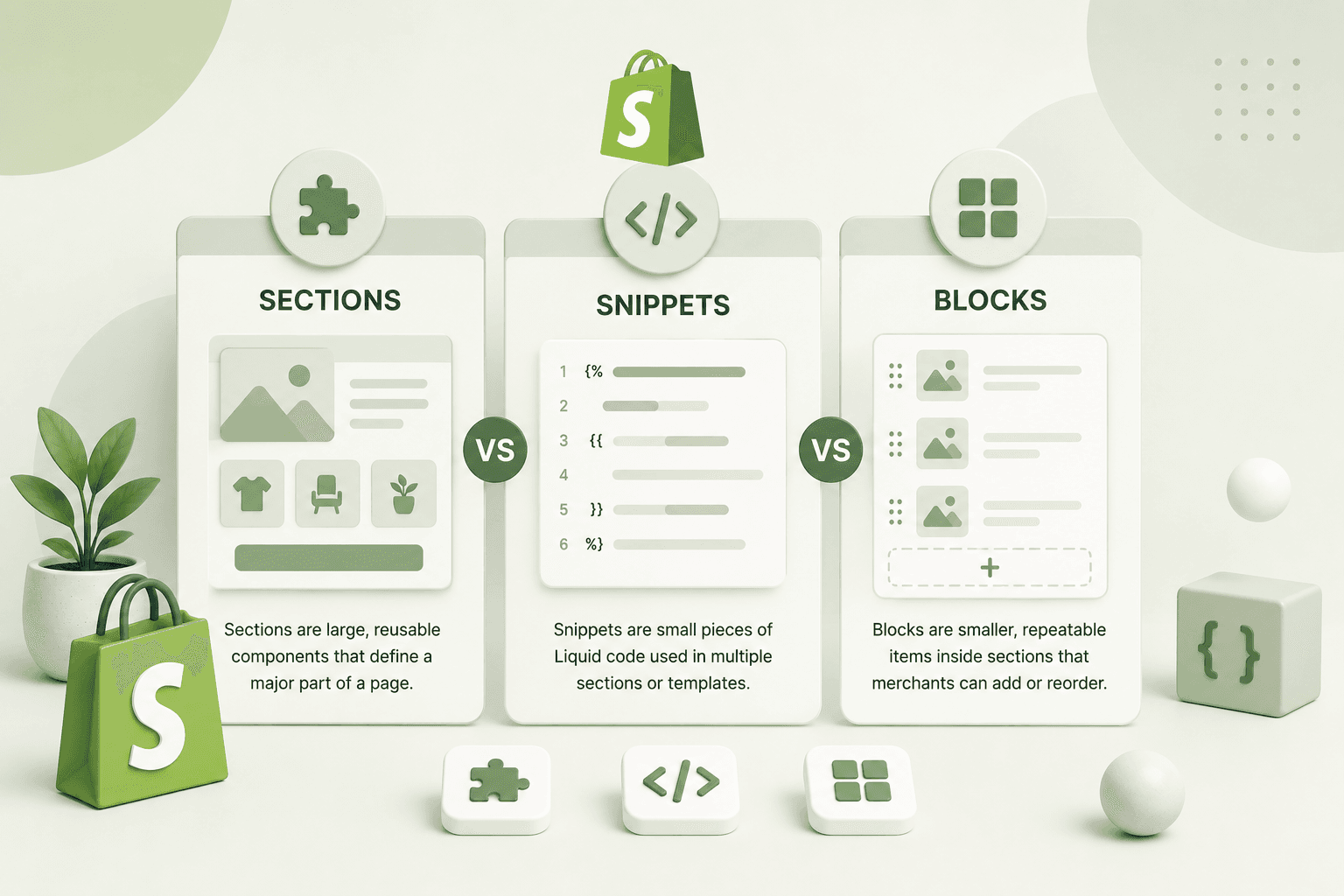
One of the first questions Shopify store owners and new developers encounter is: "Should I change this in the Theme Editor or edit the code?"
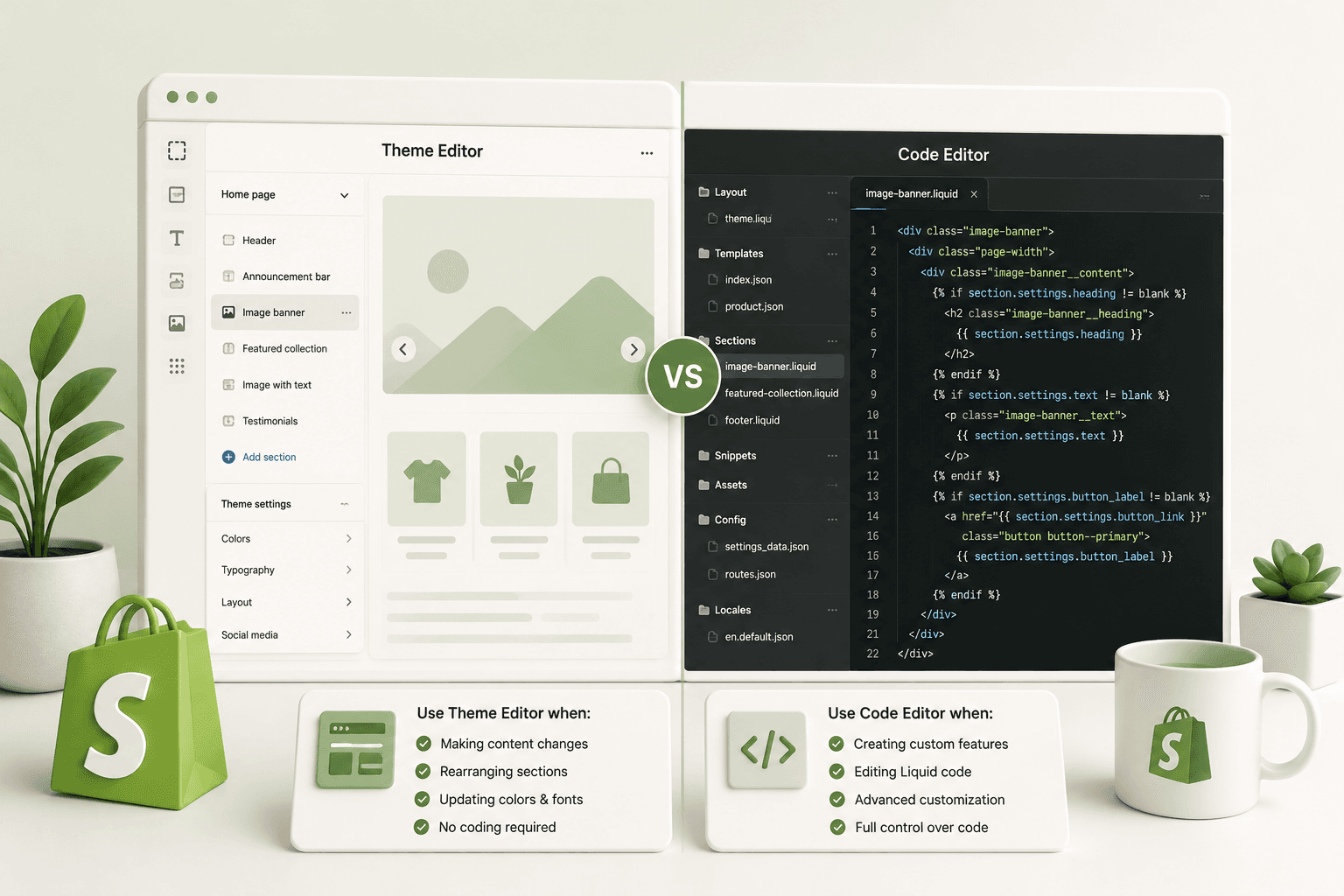
Shopify provides a visual Theme Editor that allows merchants to customize many parts of their storefront without writing code. At the same time, Shopify themes also provide access to Liquid, CSS, JavaScript, JSON templates, sections, snippets, and other theme files through the code editor.
Both tools are useful, but they solve different problems.
In this guide, we'll explain the difference between the Shopify Theme Editor and Code Editor, when you should use each one, what you should avoid changing, and how developers can build sections that make the Theme Editor more useful for store owners.
Why Shopify Store Speed Matters
Shopify Theme Editor vs Code Editor at a Glance| Task | Theme Editor | Code Editor |
|---|---|---|
| Change text | Usually preferred | Usually unnecessary |
| Change section settings | Preferred | Sometimes required |
| Add a new custom section | No | Yes |
| Change Liquid logic | No | Yes |
| Modify CSS | Limited | Yes |
| Add custom JavaScript | Limited | Yes |
| Rearrange supported sections | Preferred | Not usually necessary |
| Change theme architecture | No | Yes |
| Merchant-friendly content updates | Preferred | Not recommended |
Why Shopify Store Speed Matters
What Is the Shopify Theme Editor?The Shopify Theme Editor is Shopify's visual interface for customizing a theme.
Instead of opening Liquid files and manually changing markup, a merchant can use the editor to configure supported sections, blocks, settings, content, and design options.
Depending on the theme, the editor can provide controls for:
- Headings
- Text
- Images
- Buttons
- Colors
- Typography
- Spacing
- Product selections
- Collection selections
- Section order
- Blocks
The exact options available depend on how the theme and its sections were developed.
Why Shopify Store Speed Matters
Why the Theme Editor Is ImportantA well-designed Shopify theme should allow merchants to make common content and layout changes without needing a developer for every small update.
For example, imagine a developer creates a promotional banner with these schema settings:
{
    "type": "text",
    "id": "heading",
    "label": "Heading"
},
{
    "type": "image_picker",
    "id": "image",
    "label": "Image"
},
{
    "type": "url",
    "id": "button_link",
    "label": "Button link"
}
The merchant can then change the heading, image, and link through the Theme Editor without modifying the Liquid file.
This is one of the main benefits of Shopify's section-based theme architecture.
Why Shopify Store Speed Matters
What Is the Shopify Code Editor?The Shopify Code Editor provides access to the theme's underlying files.
Depending on the theme, you may work with files and directories such as:
assets/
config/
layout/
locales/
sections/
snippets/
templates/
Developers can use these files to modify the actual behavior, structure, styling, and functionality of the storefront.
Common technologies involved include:
- Liquid
- HTML
- CSS
- JavaScript
- JSON
Why Shopify Store Speed Matters
When Should You Use the Shopify Theme Editor?The Theme Editor should generally be your first choice when the change you want is already supported by the theme.
1. Changing Existing Text
Suppose a hero section already has a heading setting.
If you only need to change:
Summer Collectionto:
New Summer Arrivalsthere is usually no reason to edit the Liquid code.
Change the value through the Theme Editor.
2. Changing Images
If a section already contains an image picker, use the Theme Editor to replace the image.
This is safer than hard-coding a new image into the section.
3. Changing Button Links
If the section provides a button URL setting, update the link through the editor.
For example:
Shop Now → /collections/summerIf the merchant later wants the button to point to another collection, they should not need to edit Liquid.
4. Rearranging Sections
If the theme allows sections to be moved, the Theme Editor is the appropriate place to change their order.
For example:
Hero
↓
Featured Collection
↓
Testimonials
↓
Newsletter
You might decide that the testimonials should appear before the featured collection.
If the theme supports that arrangement, simply move the section in the editor.
5. Adding Existing Sections
If your theme already provides the section you need, use it instead of creating duplicate code.
For example, if the theme already has an Image With Text section, there may be no reason to build another section that performs the same basic function.
Why Shopify Store Speed Matters
When Should You Use the Code Editor?The Code Editor becomes necessary when the functionality or structure you need isn't supported by the existing theme.
1. Creating a Custom Section
Suppose the theme doesn't have the promotional layout your client needs.
You may create:
sections/custom-promotion-banner.liquidThe new section can then expose its own settings through schema.
2. Changing Liquid Logic
Suppose you want to display a special badge when a product has a particular tag.
{% raw %}{% if product.tags contains 'new-arrival' %}

    <span class="product-badge">
        New Arrival
    </span>

{% endif %}{% endraw %}
This requires theme code rather than a normal Theme Editor setting.
3. Creating Custom Shopify Functionality
More advanced functionality often requires code.
Examples include:
- Custom product display logic
- Dynamic content rendering
- Custom cart interactions
- Advanced filtering
- Custom JavaScript interactions
- Custom API integrations
- Special promotional logic
4. Modifying CSS
The Theme Editor may provide some design controls, but it won't necessarily provide the exact styling control you need.
For example, a client might ask for:
Desktop:
2-column layout

Mobile:
stacked layout

Custom:
specific spacing and typography
This may require custom CSS.
5. Adding JavaScript
If you need functionality such as:
- Custom sliders
- Interactive tabs
- Advanced accordions
- Dynamic cart behavior
- Custom modal interactions
- Client-side filtering
you will generally need JavaScript and therefore theme code.
Why Shopify Store Speed Matters
Theme Editor vs Code Editor: A Practical ExampleImagine a client says:
"Change the homepage hero image and update the button link."
If those settings already exist, use the Theme Editor.
Now imagine the client says:
"Create a hero where the image changes position based on the selected layout and add three configurable feature blocks underneath it."
This is a development task.
You would likely create or modify a section and its schema, then expose the appropriate settings to the Theme Editor.
The best workflow is therefore not:
Theme Editor OR Code EditorIt is:
Code Editor
     ↓
Build functionality
     ↓
Expose useful settings
     ↓
Theme Editor
     ↓
Merchant manages content
Why Shopify Store Speed Matters
The Best Shopify Development WorkflowProfessional Shopify development often means using both tools together.
Step 1: Understand the Requirement
Before changing anything, determine exactly what the merchant is asking for.
Is it simply a content change, or does it require new functionality?
Step 2: Check the Theme Editor
Look at the existing section settings.
The functionality you need may already exist.
Step 3: Check the Theme Code
If the required functionality doesn't exist, inspect the relevant section, snippet, template, and asset files.
Step 4: Modify or Create the Component
Add the required Liquid, schema, CSS, or JavaScript.
Step 5: Expose Useful Settings
Don't hard-code every piece of content.
If a merchant will need to change a value later, consider exposing it as a schema setting.
Step 6: Test in the Theme Editor
After development, test the section through the visual editor.
Step 7: Test the Storefront
Finally, check the actual storefront on desktop and mobile.
Why Shopify Store Speed Matters
Why Developers Should Not Hard-Code EverythingImagine you create this:
<h2>Free Shipping Over $50</h2>It works perfectly.
But a week later the merchant wants:
Free Shipping Over $75If the value is hard-coded, a developer has to make the change.
A better approach is to expose it as a setting:
{% raw %}{
    "type": "text",
    "id": "shipping_message",
    "label": "Shipping message",
    "default": "Free Shipping Over $50"
}{% endraw %}
Then:
{% raw %}{{ section.settings.shipping_message }}{% endraw %}Now the merchant can manage the content without touching code.
Why Shopify Store Speed Matters
When Editing Code Is Better Than Using the Theme EditorThere are situations where trying to achieve something through Theme Editor settings is inefficient.
For example, if a client requests:
"Show a different message when a product has a specific tag."
A developer might implement the logic using Liquid:
{% raw %}{% if product.tags contains 'limited-edition' %}

    <p class="product-message">
        Limited Edition Product
    </p>

{% endif %}{% endraw %}
Creating multiple theme settings for this type of logic may make the editor unnecessarily complicated.
Why Shopify Store Speed Matters
When Editing Code Is the Wrong ChoiceDevelopers sometimes modify code when they don't need to.
For example, if the client simply wants to change:
- Hero heading
- Button text
- Image
- Collection
- Background color
and those settings already exist, editing Liquid creates unnecessary work and increases the chance of introducing a bug.
Always check the existing theme settings first.
Why Shopify Store Speed Matters
Theme Editor vs Code Editor for Store OwnersIf you're a store owner without development experience, the general rule is simple:
If the setting already exists
        ↓
Use Theme Editor

If the setting doesn't exist
        ↓
Ask a developer
Avoid modifying Liquid files just to change normal store content unless you understand exactly what the code does.
Why Shopify Store Speed Matters
Theme Editor vs Code Editor for DevelopersDevelopers should think of the two tools as complementary.
The Code Editor is where you build the functionality.
The Theme Editor is where merchants configure that functionality.
For example:
Developer
   ↓
Liquid + Schema
   ↓
Custom Section
   ↓
Theme Editor Settings
   ↓
Merchant
   ↓
Changes Content
This separation creates a better development and maintenance workflow.
Why Shopify Store Speed Matters
How Schema Connects the TwoShopify section schema is one of the most important pieces connecting development and merchant customization.
Consider:
{% raw %}{
    "type": "text",
    "id": "heading",
    "label": "Heading"
}{% endraw %}
The developer defines the setting.
The Theme Editor exposes the setting.
The merchant provides the value.
Liquid renders the value:
{% raw %}{{ section.settings.heading }}{% endraw %}This is one of the core ideas behind configurable Shopify themes.
Why Shopify Store Speed Matters
What Happens If You Change Theme Code?Theme code changes can affect the storefront in ways that are not immediately visible.
A small change to a shared snippet can potentially affect multiple pages because that snippet may be rendered in several locations.
For example:
snippets/product-card.liquid
        ↓
Homepage
Collection
Search
Recommendations
Changing that snippet could therefore affect several components.
This is why developers should understand theme architecture before making code changes.
Why Shopify Store Speed Matters
Use Theme Backups Before Major Code ChangesBefore making significant theme modifications, create an appropriate backup or duplicate theme when your workflow allows it.
This gives you a safer environment for testing changes before they are applied to the live storefront.
Avoid experimenting directly on a live production theme when a development or duplicate theme is available.
Why Shopify Store Speed Matters
Common Mistakes to AvoidMistake 1: Editing Code for Simple Content Changes
If the content is already configurable, use the Theme Editor.
Mistake 2: Hard-Coding Merchant Content
If a merchant will need to change the content regularly, consider creating a schema setting.
Mistake 3: Changing Shared Files Without Checking Dependencies
A shared snippet or asset can affect multiple parts of a storefront.
Mistake 4: Testing Only on Desktop
Code changes should be checked on mobile as well.
Mistake 5: Adding Too Many Theme Settings
A section with dozens of settings can become difficult for merchants to understand.
Expose controls that provide meaningful flexibility instead of exposing every implementation detail.
Why Shopify Store Speed Matters
Theme Editor vs Code Editor: Decision Guide| Question | Recommended Choice |
|---|---|
| Does the setting already exist? | Theme Editor |
| Do you need to change Liquid? | Code Editor |
| Do you need a new section? | Code Editor |
| Do you need to change section content? | Theme Editor |
| Do you need custom CSS? | Code Editor |
| Do you need custom JavaScript? | Code Editor |
| Do you need to rearrange sections? | Theme Editor |
| Do you need a new merchant setting? | Code Editor first, then Theme Editor |
| Do you need to update normal store content? | Theme Editor |
Why Shopify Store Speed Matters
A Simple Rule to RememberIf you're unsure which tool to use, ask yourself one question:
"Am I changing the content, or am I changing how the theme works?"
If you're changing content or configuration, start with the Theme Editor.
If you're changing functionality, structure, or code, use the Code Editor.
Content / Configuration
          ↓
     Theme Editor

Functionality / Structure
          ↓
      Code Editor
Why Shopify Store Speed Matters
How Professional Shopify Developers Use BothIn a professional Shopify project, the developer shouldn't try to make the merchant dependent on them for every small update.
Instead, the developer should build flexible components.
For example:
Developer creates:

Custom Hero Section
        ↓
Schema settings
        ↓
Heading
Image
Button
Alignment
Colors
        ↓
Merchant manages through Theme Editor
This approach saves time for both the merchant and developer.
Why Shopify Store Speed Matters
Theme Editor and Shopify Online Store 2.0Shopify's modern theme architecture places significant emphasis on configurable sections, blocks, and templates.
This means developers should understand how to create sections that work well inside the Theme Editor rather than building everything as hard-coded templates.
JSON templates can define page composition, while sections and their schemas provide configurable components.
This is one reason why understanding Shopify theme architecture is important for modern theme development.
Why Shopify Store Speed Matters
Frequently Asked QuestionsWhat is the Shopify Theme Editor?
The Shopify Theme Editor is a visual interface that allows merchants to customize supported theme settings, sections, blocks, content, and layouts without directly editing theme code.
What is the Shopify Code Editor?
The Shopify Code Editor provides access to theme files such as Liquid, CSS, JavaScript, JSON, sections, snippets, templates, and other theme resources.
Should beginners use the Shopify Code Editor?
Beginners should generally use the Theme Editor for normal content and design changes. The Code Editor should be used carefully when custom functionality or theme modifications are required.
Can I create a custom section using the Theme Editor?
A developer normally creates the section and its schema in the theme code first. Once the section supports the necessary configuration, merchants can add and configure it through the Theme Editor.
Can I change Liquid code from the Theme Editor?
No. The Theme Editor is primarily for configuring the settings exposed by the theme. Changing the underlying Liquid implementation requires access to the theme code.
Should I use the Theme Editor or Code Editor for CSS changes?
If the theme already provides the required design setting, use the Theme Editor. If you need custom styling that isn't supported by the existing settings, the Code Editor may be necessary.
Which is better: Shopify Theme Editor or Code Editor?
Neither is universally better. They serve different purposes. The Theme Editor is best for merchant-controlled configuration, while the Code Editor is best for development and custom functionality. Professional Shopify workflows commonly use both.
Why Shopify Store Speed Matters
Final ThoughtsThe Shopify Theme Editor and Code Editor aren't competing tools. They are two parts of the same theme development workflow.
Use the Theme Editor when the functionality already exists and you simply need to change content, settings, sections, or supported design options.
Use the Code Editor when you need to create new functionality, modify Liquid logic, build custom sections, change CSS, add JavaScript, or modify the underlying theme architecture.
For developers, the ideal approach is to build functionality in code and expose the right controls through schema so merchants can manage the storefront themselves.
The goal isn't to give the merchant access to every piece of code. The goal is to give them the right controls for the things they actually need to manage.
Once you understand that distinction, Shopify theme customization becomes much easier to approach—and you can make better decisions about when to code and when to simply configure.